
Debugging Go HTTP Handlers with Delve and Postman
1. The Problem with fmt.Println Debugging
Every Go developer has done it — sprinkling fmt.Println calls throughout an HTTP handler to figure out what’s going wrong with an incoming request. It works, but it’s slow: change code, restart server, resend the request, read the output, repeat.
When you’re dealing with complex handler logic — parsing request bodies, chaining middleware, hitting a database — this cycle gets painful fast. What you actually want is to pause execution mid-request, inspect the live state of every variable, and step through the code line by line.
That’s exactly what Delve gives you.
2. How It Works
The approach is simple:
- Configure VS Code to launch your Go server through Delve
- Press F5 — VS Code compiles your code and starts the server with the debugger attached
- Set a breakpoint inside your HTTP handler
- Send a request from Postman
- VS Code pauses at the breakpoint — inspect variables, step through logic
No code changes needed in your application, and no manual terminal commands. VS Code handles everything through the Go extension.
3. Prerequisites
- Delve installed:
go install github.com/go-delve/delve/cmd/dlv@latest - VS Code with the Go extension
- Postman
4. The Example Project
We’ll use a minimal HTTP server with a single POST /users endpoint:
// main.go
package main

import (
	"encoding/json"
	"fmt"
	"net/http"
)

type CreateUserRequest struct {
	Name  string `json:"name"`
	Email string `json:"email"`
}

type CreateUserResponse struct {
	ID    int    `json:"id"`
	Name  string `json:"name"`
	Email string `json:"email"`
}

func main() {
	http.HandleFunc("/users", handleCreateUser)
	fmt.Println("Server running on :8080")
	http.ListenAndServe(":8080", nil)
}

func handleCreateUser(w http.ResponseWriter, r *http.Request) {
	var req CreateUserRequest
	if err := json.NewDecoder(r.Body).Decode(&req); err != nil {
		http.Error(w, "invalid request body", http.StatusBadRequest)
		return
	}

	// Business logic would go here
	resp := CreateUserResponse{
		ID:    1,
		Name:  req.Name,
		Email: req.Email,
	}

	w.Header().Set("Content-Type", "application/json")
	json.NewEncoder(w).Encode(resp)
}
5. Configuring VS Code
Create a .vscode/launch.json file in your project root:
{
  "version": "0.2.0",
  "configurations": [
    {
      "name": "Attach to Delve",
      "type": "go",
      "request": "launch",
      "mode": "debug",
      "program": "${workspaceFolder}",
      "cwd": "${workspaceFolder}"
    }
  ]
}
What the key fields mean:
| Field | Value | Description |
|---|---|---|
request | "launch" | VS Code starts the process — no manual server needed |
mode | "debug" | Compile and run under Delve |
program | ${workspaceFolder} | Run the main package at the project root |
Then to start the debug session:
- Open the Run and Debug panel (
Ctrl+Shift+D) - Select “Attach to Delve” from the dropdown
- Press F5 (or click the green play button)
VS Code will compile your code and start the HTTP server with Delve attached. You’ll see the debug toolbar appear at the top and your server logs in the Debug Console.
7. Set a Breakpoint
Open main.go and click the gutter (the space to the left of the line numbers) on the line inside handleCreateUser where you want to pause. A red circle will appear.
For this example, set the breakpoint on the line right after the decode block — where business logic begins:
func handleCreateUser(w http.ResponseWriter, r *http.Request) {
	var req CreateUserRequest
	if err := json.NewDecoder(r.Body).Decode(&req); err != nil {
		http.Error(w, "invalid request body", http.StatusBadRequest)
		return
	}

	// 👈 set breakpoint here
	resp := CreateUserResponse{
8. Send the Request from Postman
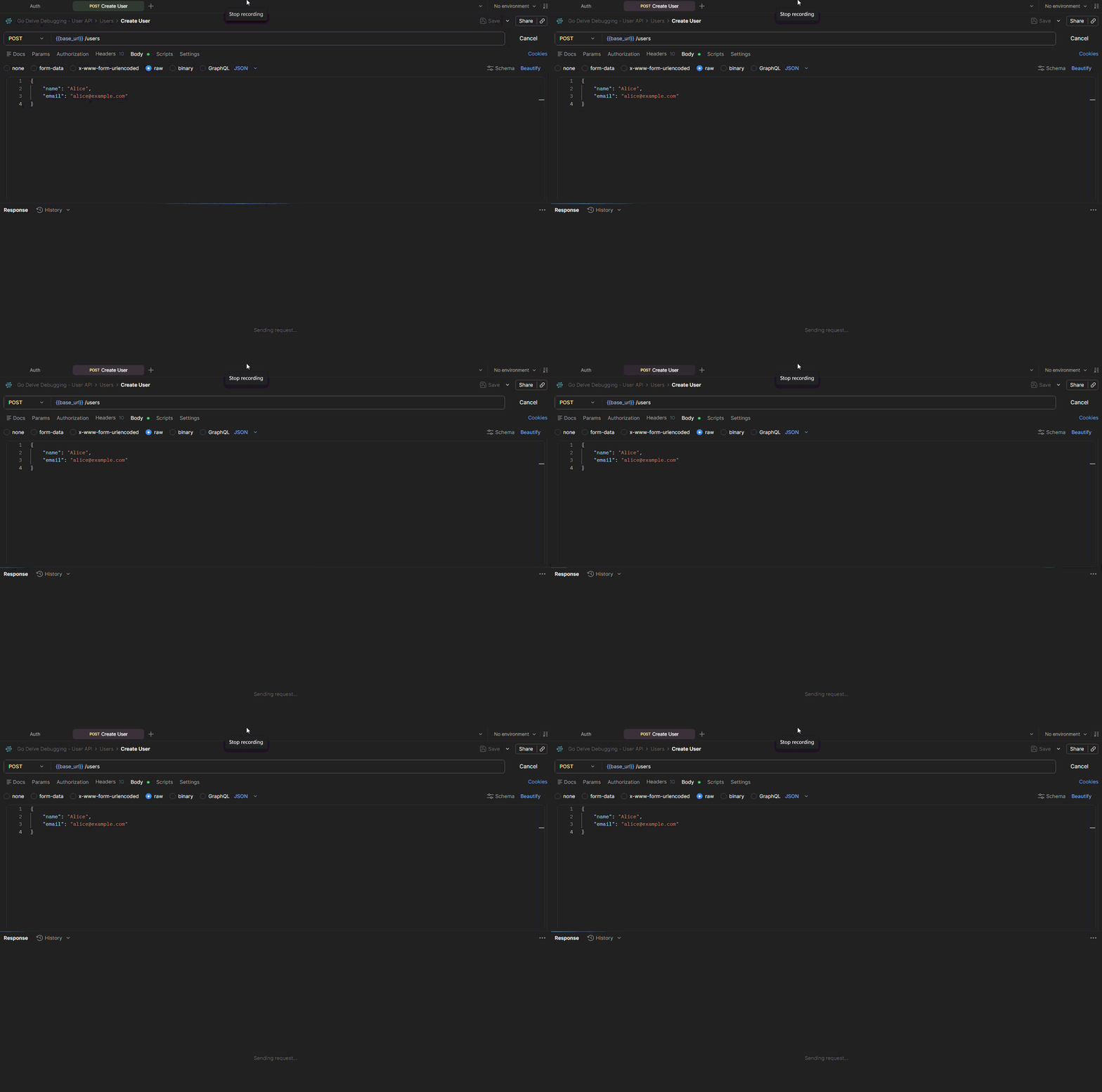
In Postman, send a POST request to http://localhost:8080/users with this body:
{
  "name": "Alice",
  "email": "alice@example.com"
}
The moment the request hits the handler, VS Code will pause at your breakpoint. Postman will show the request as pending — it’s waiting for the handler to complete.
9. Inspect and Step Through
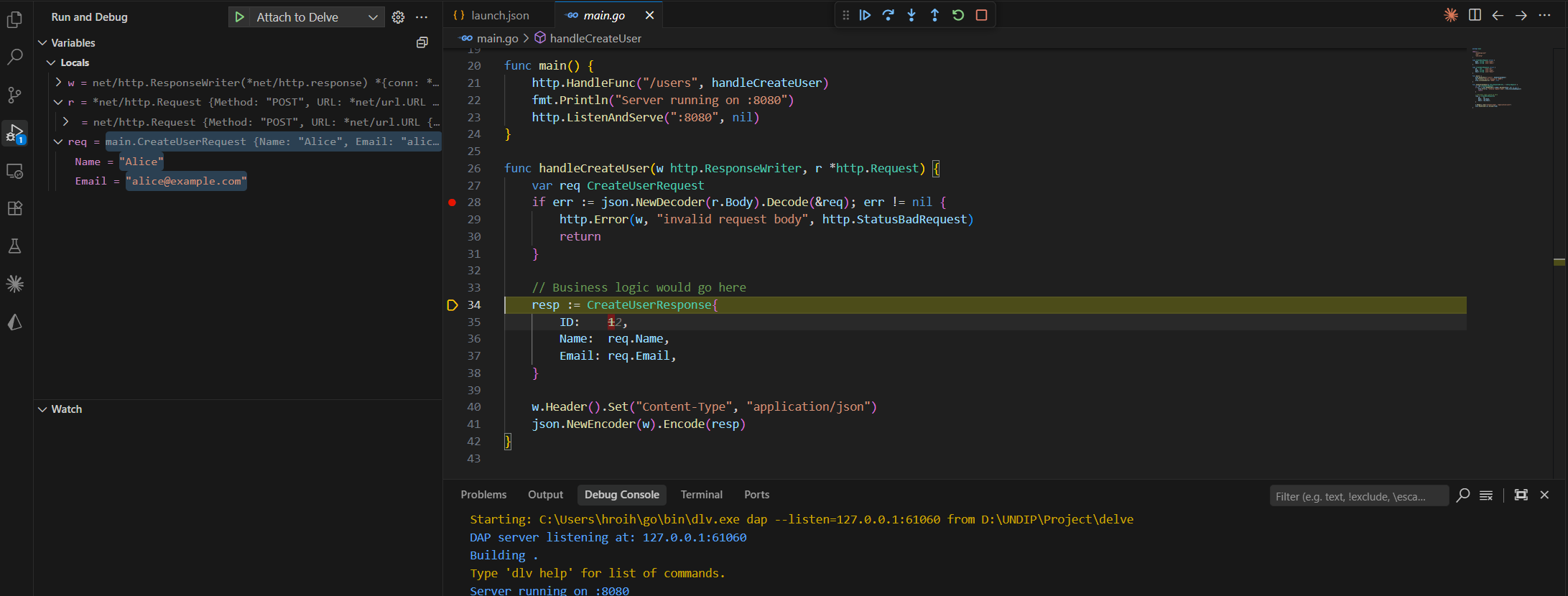
With execution paused, you can:
- Variables panel (left sidebar) — see the current value of
req,w,r, and every local variable in scope - Watch panel — add expressions like
req.Nameto track specific values - Step Over (
F10) — execute the current line and move to the next - Step Into (
F11) — dive into a function call - Continue (
F5) — resume execution until the next breakpoint
Once you hit Continue, the handler finishes and Postman receives the response.
10. Stopping the Session
When you’re done, click the red square in the debug toolbar (or press Shift+F5). VS Code stops the Delve process and the HTTP server along with it.
To debug again, just press F5 — VS Code recompiles and restarts from scratch.
Summary
| Step | What you do |
|---|---|
| Configure | Create .vscode/launch.json (see section 5) |
| Start | VS Code → Run and Debug → F5 |
| Set breakpoint | Click gutter next to the line in your handler |
| Trigger | Send request from Postman |
| Inspect | Use Variables / Watch / Step controls in VS Code |
| Resume | Press F5 — Postman gets the response |
| Stop | Shift+F5 — stops both Delve and the HTTP server |
That’s the full flow. Once you’ve done it once, it becomes a natural part of the debugging loop — much faster than print-statement debugging for anything more complex than a trivial handler.